Combining a few PDFs, pulling three pages out of a longer one, or fixing a scan that came out sideways does not need an account, an upload, or a wait for processing. The PDF merge tool on this site, along with the split and rotate tools next to it, run the whole operation inside the browser tab that already has the page open. The file goes from disk into memory, gets rearranged, and comes back out as a download. Nothing crosses the network in between.
All three, plus the images-to-pdf tool, are built on the same library, pdf-lib, which describes itself as pure JavaScript with no native dependencies, meaning it can run inside a browser tab with nothing installed. Each tool does the same basic thing: read a PDF's page objects into memory, copy or edit them, and write a new file out. What changes is the operation. This guide works through each one with real numbers, explains what the library touches and what it leaves alone, and covers the cases where a browser tool is the wrong pick.
Merging two files into one
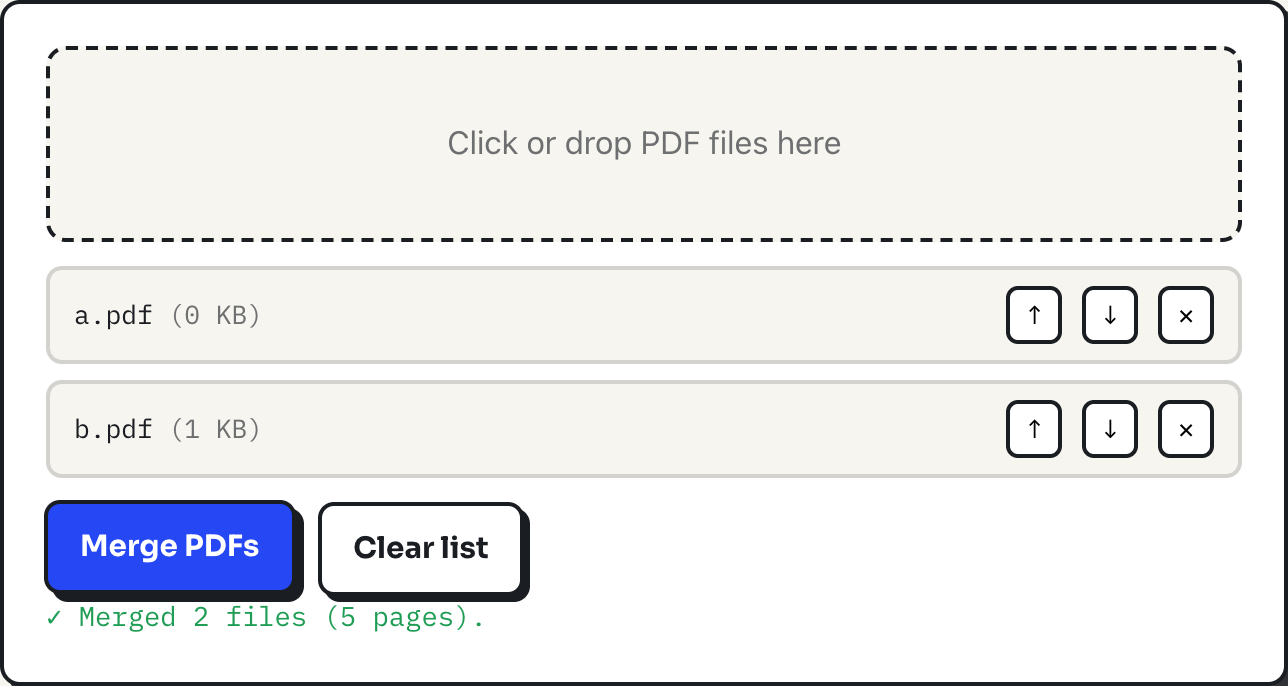
Drop files onto the merge tool and they queue up in a list with up and down arrows next to each name; the output follows that list top to bottom. Take the two sample files used for the screenshot above: a.pdf has 2 pages and b.pdf has 3. Add both, leave the order as dropped, and click Merge PDFs. The download, merged.pdf, has exactly 2 + 3 = 5 pages: the two pages of a.pdf first, then the three pages of b.pdf. Every page keeps its own original size in the merged file, so a letter-size document and an A4 document combined together each keep their own dimensions rather than being forced to match.
Splitting a document into a piece, or into every page
The split tool reads a page range typed as comma-separated numbers and hyphenated spans, like 1-2, 4. Applied to the 5-page merged file above, that range pulls pages 1, 2 and 4, in that order, into a new 3-page download named merged-pages.pdf. Two details matter here: a duplicate like 1, 1-2 collapses to just pages 1 and 2 once each, and a page number past the end of the document is silently dropped rather than causing an error. There is a second mode, One file per page, which explodes the whole document into individually numbered files, merged-p1.pdf through merged-p5.pdf for a 5-page source. Past 50 pages the tool asks for confirmation first, because that mode really does trigger one browser download per page, spaced a quarter second apart so the browser's download manager can keep up.
Fixing a page that is sideways or upside down
The rotate tool does not touch the page content at all. It changes a single stored property, the page's rotation angle, which every PDF viewer reads and applies when it draws the page. Pick 90, 180 or 270 degrees, optionally list which pages (leave it blank for all of them), and the new angle is added to whatever rotation the page already had, then reduced modulo 360. That last part matters if a page has already been rotated once: rotate a page 90 degrees, realize it needed 180, and rotating it another 90 lands it exactly where it should be rather than doubling the first mistake. Applied to the 5-page merged file from above, choosing 90° clockwise and typing 3, 5 into the page field rotates only those two pages; the status line reports "Rotated 2 pages by 90°," and the download arrives as merged-rotated.pdf with pages 1, 2 and 4 untouched.
Turning photos or scans into one PDF
Going the other direction, the images-to-pdf tool places one image per page. JPG and PNG files are embedded exactly as they are, byte for byte, with no re-encoding. Other formats, including WebP, are drawn onto a canvas at full resolution and converted to PNG before embedding, so nothing is downsampled in the process. Each image is scaled to fit its page while keeping its proportions, then centered, using the smaller of the width ratio and the height ratio so nothing overflows or stretches. Page size can be Letter, A4, or "match image size", which makes every page exactly the pixel dimensions of its source photo, the right setting for a PDF that will only ever be viewed on a screen rather than printed.
What stays the same across all four
| Tool | What goes in | Result on the sample files | Output name |
|---|---|---|---|
| Merge | a.pdf, b.pdf | 2 + 3 = 5 pages | merged.pdf |
| Split (extract) | the 5-page merged file, range 1-2, 4 | 3 pages | merged-pages.pdf |
| Split (one file per page) | the 5-page merged file | 5 separate files | merged-p1.pdf … merged-p5.pdf |
| Rotate | the 5-page merged file, 90°, pages 3 and 5 | 5 pages, 2 rotated | merged-rotated.pdf |
| Images to PDF | 2 photos | 2 pages | images.pdf |
Every row shares one property: the page count and page order in the output are exactly what the arithmetic above predicts, because pdf-lib copies page objects rather than re-rendering them. Text stays selectable, embedded fonts stay embedded, and image resolution inside a copied page is untouched. Nothing is compressed and nothing is watermarked.
Where this stops being the right tool
All four tools try to load a PDF with encryption ignored, so a document that only needs its permissions flags cleared may still open; one that is genuinely password-protected to view will not load at all, and the fix is to remove the password in whatever program set it, not to keep retrying here. None of the four can OCR a scanned page, add or remove text, or repair a corrupted file: a PDF that will not open in a normal reader will not process here either. Rotation is limited to the three right angles, so a scan that is crooked by a couple of degrees needs a scanner utility with deskewing, not this tool. And merging never shrinks anything: two 40 MB scans combine into roughly an 80 MB file, so if size is the goal, compress the images first and merge the smaller versions.
What to do
- Reorder files in the merge or images-to-pdf list before merging; the arrows move a file up or down, and the output always follows the visible order.
- Write page ranges as comma-separated numbers and hyphenated spans, and expect duplicates and out-of-range numbers to be handled for you.
- Note which pages are wrong before opening the rotate tool; there is no preview, so knowing the numbers in advance is faster than guessing.
- Compress images before building a PDF from them, and compress scans before merging them, since none of these tools reduces file size on its own.
- Keep an unencrypted copy of anything you need to process here; remove PDF passwords in their source program first.