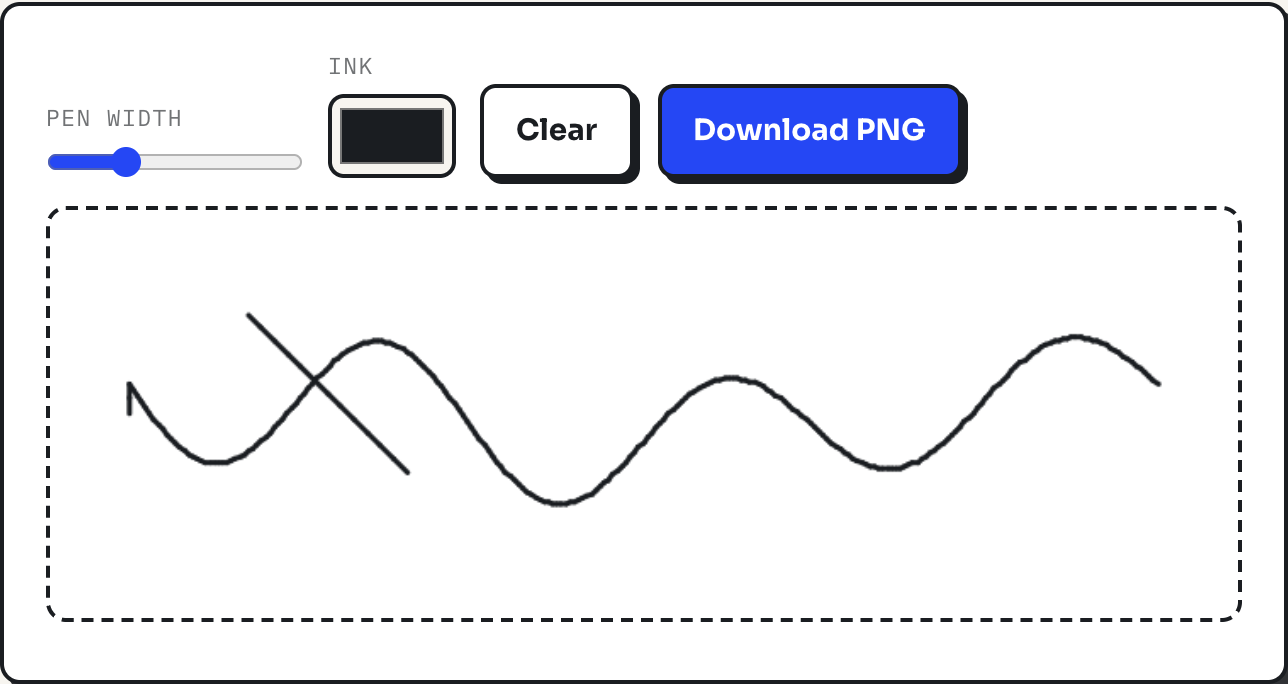
The fastest way to sign a document you did not print is to draw your signature once and reuse the image. The signature drawer on this site does exactly that: sign inside the box with a mouse, trackpad or finger, and download a PNG with a transparent background that drops onto a PDF page like ink rather than a white sticker. This guide covers the drawing itself, how to actually get the image onto a document, and the honest limits of an image-based signature.
Nothing here is uploaded. The canvas lives in the browser tab, and the file it produces exists only when you click download.
Drawing and exporting the signature
The canvas is 700 by 240 pixels, sized for a normal signature line once scaled down. Pen width runs from 1 to 8, defaulting to 3, and the ink color defaults to a near-black. Draw inside the dashed box; if the result is not right, Clear wipes the canvas and there is no undo step in between, so a good habit is short, fast strokes rather than a slow deliberate line, which tends to look shakier. The Download PNG button stays disabled until at least one stroke has been drawn, and the exported file is always named signature.png.
Why the background disappears
The canvas looks white while you draw, but that white comes from CSS styling on the page, not from any pixel on the canvas itself. The canvas element starts fully transparent, and the only pixels ever painted onto it are the strokes you draw with round line caps and joins, which is what keeps corners and stroke ends looking like a pen rather than a marker. When the tool exports with canvas.toBlob set to PNG, the alpha channel comes along with it, so everywhere you did not draw stays transparent in the file. That is the entire trick: no background removal step is needed because there was never a background to remove.
Getting the signature onto a document
Downloading signature.png does not by itself place it on a PDF or Word file; the tool draws the signature, it does not edit other documents. The next step happens in whatever program already opens that file. On a Mac, Preview can insert an image onto a PDF page and it can be dragged onto the signature line and resized. Word and Google Docs both insert a PNG as a floating image the same way you would insert a photo, and because the background is transparent, it sits on top of existing text and lines without covering them. Most email clients accept the same PNG as an inline image in a signature block. One drawn file, reused everywhere it is accepted.
When only a PDF upload is accepted
Some forms ask for a signature file but only take PDF, not PNG. For that case, run signature.png through the images-to-pdf tool with page size set to "match image size." Because the source PNG is 700 by 240 pixels and that mode makes the PDF page the same number of units as the image, the result is a one-page PDF sized 700 by 240 points, which works out to about 9.7 by 3.3 inches, a page trimmed exactly to the signature with no wasted margin. Letter or A4 page sizes would work too, but they would center a small signature on a mostly blank page, which is the wrong shape for a file whose whole purpose is being that one image.
| Situation | What to use | Result |
|---|---|---|
| Sign an existing PDF or Word file | Signature drawer, then place the PNG in a PDF/Word/Docs editor | Transparent signature sitting on the original page |
| A form only accepts a PDF upload | Signature drawer, then images-to-pdf with "match image size" | One 700×240pt page |
| Sign the same kind of document again next month | Reuse the saved signature.png | Same file, no redrawing |
What a drawn signature actually proves
An image of a signature is not the same thing as an e-signature platform's signed record. Under the United States' E-SIGN Act, an electronic signature can be legally valid, but the statute's protection rests on how the signature was executed and adopted, not on the picture itself: dedicated e-signature services log who signed, when, from where, and bind the signature cryptographically to the exact document, producing an audit trail a court can examine. A PNG dragged onto a page carries none of that. It is a picture of a mark, nothing more, which is exactly why it is fine for a lease acknowledgment, an internal form, or a permission slip, and the wrong tool for a document that will be contested and needs to prove who signed it and when.
Honest limitations
There is no pressure sensitivity, so a stylus draws the same line whether pressed hard or soft, and there is no smoothing, so what you draw is exactly what exports, wobble included. Because the file is just an image, anyone who has it can paste it onto a document you never saw, the same risk that exists with a signature stamp; keep the file the way you would keep a pen-and-ink signature stamp; do not attach it to public posts or share it beyond the specific documents it is meant for. And the tool itself makes no claim beyond what it is: a way to draw a mark and export it cleanly, not a signing service with identity checks.
What to do
- Draw a few short, quick strokes rather than one slow careful line; slow drawing tends to look worse, not better.
- Save one good
signature.pngand reuse it, rather than redrawing for every document. - Place the PNG using whatever program already has the document open: Preview, Word, Google Docs, or a PDF editor.
- Convert to a one-page PDF with the images-to-pdf tool, page size "match image size," when a system will only accept a PDF.
- Reach for a dedicated e-signature service instead, whenever a document needs a verifiable audit trail of who signed and when.