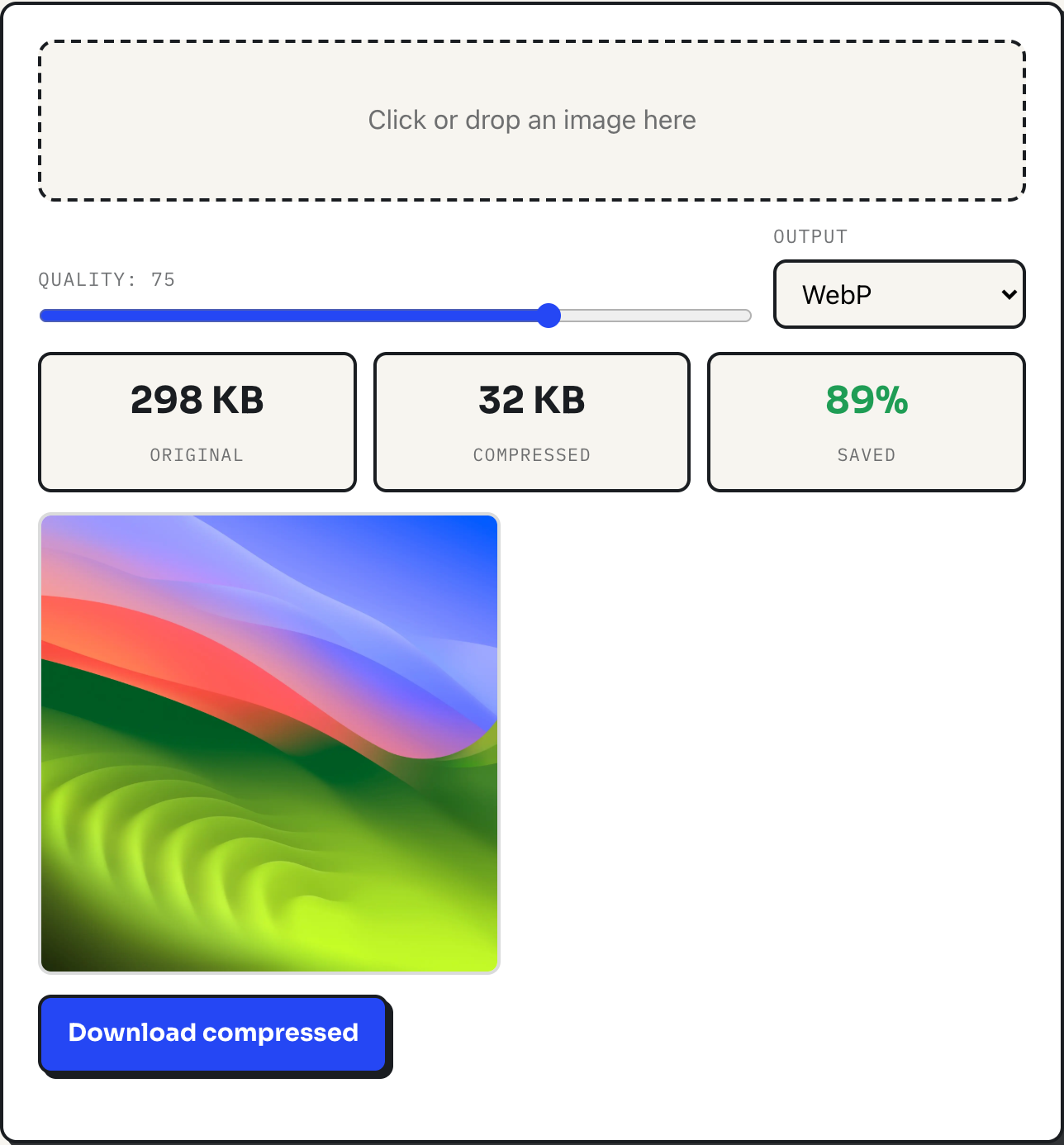
Use JPEG for ordinary photographs that need to work everywhere, WebP for the same photographs when the destination is a modern web page, and PNG for screenshots, logos and anything that needs transparency or perfectly sharp edges. That is the short version. The longer, more useful version comes from running one photo through the image converter and the image compressor and reading the file sizes that come back, which is what this guide does.
The test image is a scenic photograph, a macOS desktop wallpaper, exported at 1920 by 1920 pixels two ways: as a lossless PNG (3.34 MB) and as a JPEG at quality 92 (298 KB). Every number below came from feeding one of those two files into the site's own tools in a Chromium browser and reading the sizes exactly as the tools display them.
What the three formats are actually for
PNG stores every pixel exactly, which is why it is lossless and why photographs encode into large files: there is no smoothing over the fine, random variation that a camera sensor produces. JPEG throws detail away in a way tuned for photographs, so it recovers most of that space back, at the cost of being unable to represent transparency at all. WebP, defined by Google and documented at developers.google.com/speed/webp, does both jobs: it has a lossy mode aimed at the same kind of content as JPEG, and it supports an alpha channel like PNG. Every browser in current use can decode all three; Mozilla's format reference at developer.mozilla.org lists JPEG, PNG and WebP as supported image types without qualification.
The measured comparison
Starting from the 1920x1920 PNG (3.34 MB) and running it through the compressor at four quality settings, with PNG output included as a re-encode for reference:
| Format | Quality 92 | Quality 80 | Quality 75 | Quality 60 |
|---|---|---|---|---|
| PNG (re-encode, lossless) | 5.07 MB | |||
| JPEG | 185 KB | 96 KB | 81 KB | 60 KB |
| WebP | 82 KB | 37 KB | 32 KB | 27 KB |
Two things stand out. First, at every quality setting tested, WebP lands at roughly half the JPEG size or less: 37 KB against 96 KB at quality 80, 32 KB against 81 KB at quality 75. On this photo, WebP is simply the better lossy choice when a browser is going to read the file. Second, the PNG row is not a typo. Re-encoding a photograph as PNG produced a 5.07 MB file from a 3.34 MB source: bigger than what went in. PNG's lossless compression has nothing to exploit in the smooth-but-noisy gradients of a photograph, and the browser's built-in PNG encoder is not tuned to squeeze the last byte out of what it can find. PNG is the wrong format for this kind of image, and the size going up rather than down is the proof.
Why re-encoding a JPEG as JPEG barely helps
Starting instead from the 298 KB JPEG and running it back through the compressor at JPEG and WebP output:
| Format | Quality 92 | Quality 90 | Quality 80 | Quality 75 |
|---|---|---|---|---|
| JPEG | 223 KB | 197 KB | 103 KB | 85 KB |
| WebP | 91 KB | 75 KB | 38 KB | 32 KB |
At quality 92, JPEG output only drops the file to 223 KB, a fraction of the reduction the same setting achieved on a fresh source. The reason is arithmetic, not a bug: quality 92 tells the encoder to preserve a lot of fine detail, but the 298 KB input is already a lossy JPEG, so most of that fine detail is gone before the second pass even starts. The encoder ends up storing overhead for detail that no longer exists. Push the case further and it gets more obvious. A separate pass through the image resizer down to 1920x1920 produced a 197 KB JPEG; running that through the compressor at quality 92 came back at 203 KB, larger than what went in. Re-encoding a JPEG at a high quality setting is not free, and it is rarely worth doing on a file that has already been compressed once. Lower quality settings, or a switch to WebP, are where the real savings sit.
Transparency: PNG and WebP keep it, JPEG cannot
JPEG has no alpha channel, full stop, which is a property of the format, not a limitation of any particular encoder. The compressor and converter code both handle this the same honest way. Before drawing the source image onto the canvas for JPEG output, both tools fill the canvas white first: ctx.fillStyle = '#fff'; ctx.fillRect(0, 0, c.width, c.height);, then ctx.drawImage(img, 0, 0) on top. Any transparent pixel in the original ends up white in the JPEG, not black, not checkered, white. That is a real and sometimes surprising side effect worth knowing before converting a logo with a transparent background to JPEG for a page with a dark background: the logo will arrive on a white box. PNG and WebP output skip that fill step entirely and carry the alpha channel through untouched.
How the tools do it
Both tools follow the same pipeline: decode the file into an <img> element, draw it onto a canvas at full pixel size with drawImage, then call canvas.toBlob(callback, mimeType, quality) to get the encoded bytes back as a file. The compressor passes the quality slider's value straight through as that third argument, from 0.10 to 1.00, except for PNG output where the argument is left undefined because PNG is lossless and ignores it. The converter is simpler and fixed: every lossy conversion runs at a flat 0.92, which is why converting the same source through the converter and through the compressor at quality 92 lands on nearly identical numbers, both tools are calling the same browser codec with the same setting. None of this touches a server; the whole pipeline runs in the tab.
Where it stops being the right tool
The compressor handles one image at a time with no batch queue, so a folder of fifty photos means fifty visits. Neither tool offers a way to keep EXIF data on purpose; canvas re-encoding strips it unconditionally, which is usually welcome for privacy but means there is no option to preserve camera or location metadata if a workflow needs it. PNG output cannot be shrunk here in any meaningful sense, since the tools re-encode losslessly rather than palette-reducing or running a dedicated PNG optimizer. Animated GIFs and animated WebP files are not handled specially: drawing an animated image onto a canvas captures whatever frame is currently showing, so the output freezes on one frame. And HEIC, the format most iPhones save in, only opens if the browser itself can decode it: Safari can, most others cannot, so a HEIC file that fails to load needs exporting as JPEG from Photos first.
What to do
- Photographs headed to a web page: convert or compress to WebP. It beat JPEG at every quality level tested here, often by half or more.
- Photographs that must open in older software or a strict corporate system: stay with JPEG, and pick a quality in the 75 to 85 range rather than defaulting to 92.
- Logos, screenshots, icons, or anything needing transparency or crisp edges: keep PNG, or use WebP if the destination is a modern browser and file size matters.
- Already have a JPEG or WebP file: do not re-encode it at a high quality expecting real savings. Start from the original, or accept that a second pass only helps at a noticeably lower quality setting.