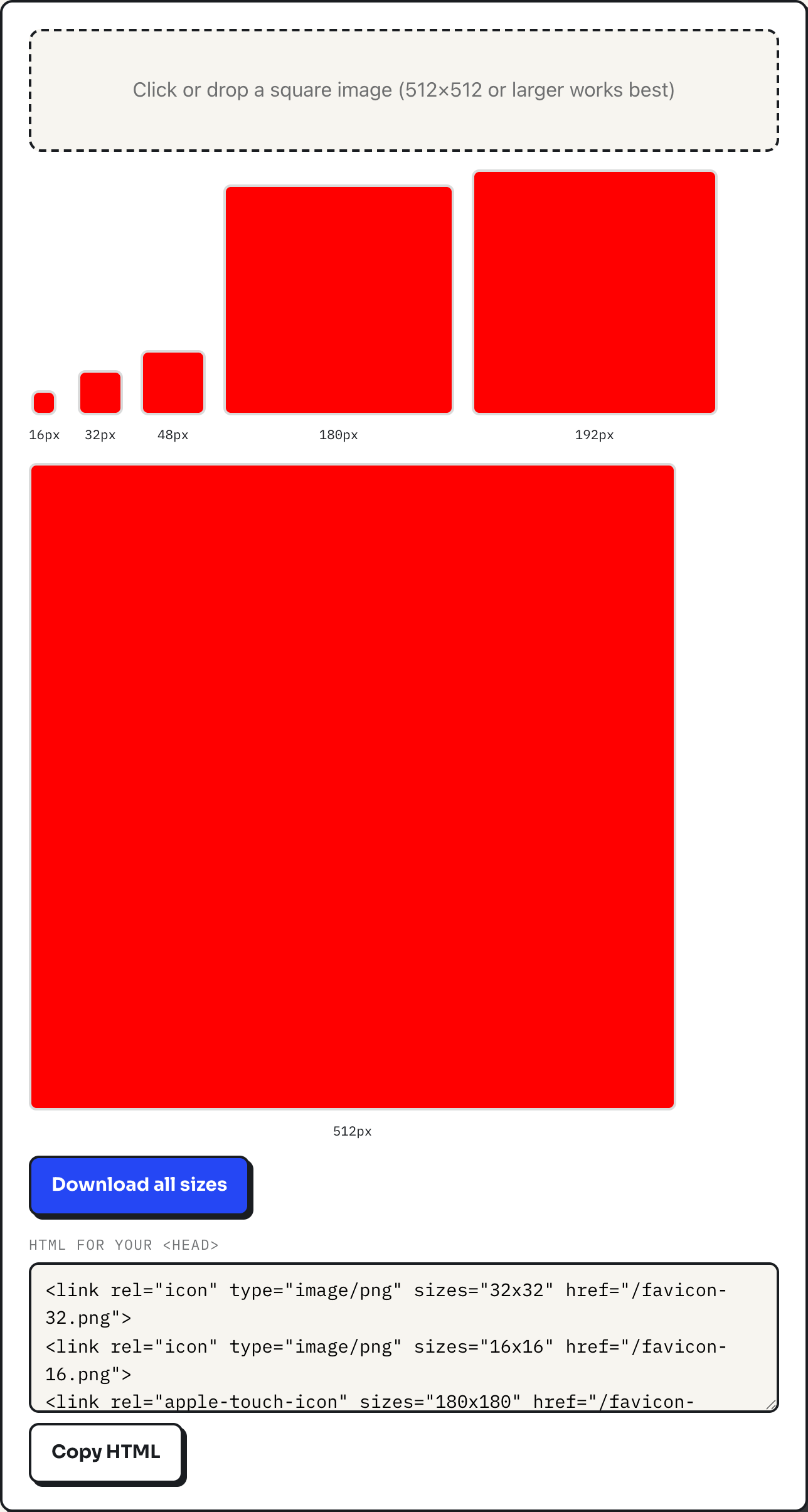
A favicon is not one image, it is a set of them, because the places that display it disagree on size: a browser tab wants something tiny, an iPhone home screen wants something much bigger with room for iOS to round the corners itself. The favicon generator on this site takes one source image and outputs six sizes at once, plus the HTML to reference them. This guide covers which of those six actually get used where, what the generator does to produce them, and where a second tool, the image resizer, earns a place in the workflow.
The six sizes are not arbitrary. Each one traces back to a real consumer: a browser, an operating system's home screen, or a web app manifest.
The six sizes and what reads each one
| Size | Who reads it | Tag in the generated HTML |
|---|---|---|
| 16×16 | Browser tabs and the bookmarks bar | <link rel="icon" sizes="16x16"> |
| 32×32 | Higher-density tabs, taskbar shortcuts | <link rel="icon" sizes="32x32"> |
| 48×48 | Legacy desktop shortcut icons | none, file only |
| 180×180 | iOS/iPadOS home screen icon | <link rel="apple-touch-icon" sizes="180x180"> |
| 192×192 | Android home screen, PWA manifest | <link rel="icon" sizes="192x192"> |
| 512×512 | PWA install prompts, splash screens | <link rel="icon" sizes="512x512"> |
The rel="apple-touch-icon" attribute at 180 pixels is Apple's own name for the tag; Apple's Human Interface Guidelines cover how home screen icons are expected to look, including the fact that iOS applies its own corner rounding, which is why a favicon source should not pre-round its own corners. The 192 and 512 sizes exist for the same reason a native app ships multiple icon resolutions: Android and any installable web app pull whichever size the manifest's icon list declares for the context, from a small home screen tile up to a full splash screen.
The one size the HTML skips
Look closely at the table and one row stands out: 48×48 is generated as a file, but it is the only one of the six left out of the copyable HTML block. The generator still produces favicon-48.png because some older Windows contexts fetch that size by convention, but nothing in the modern <link> tag set calls for it, so there is no tag to paste. If you only care about current browsers you can skip uploading that one file entirely; it costs nothing to keep it, but nothing modern asks for it either.
What the generator actually does to your image
Drop an image and the tool first finds the largest square that fits inside it, centered, and crops to that square. A perfectly square source, like the plain test square in the screenshot above, needs no cropping at all. From that square, each of the six sizes is drawn onto its own canvas directly from the source, with high-quality smoothing turned on, rather than being scaled down from an already-shrunk version, which is what keeps the smaller sizes from looking soft. Every output is exported as PNG. Clicking Download all sizes triggers six separate downloads, staggered a quarter second apart so the browser's download manager keeps up, rather than one ZIP file.
A worked example: a logo that is not already square
Say your logo file is a wide banner, decidedly not square, with your mark sitting off to one side rather than centered. Dropped into the generator, the automatic crop takes the centered square portion of that banner, which in this case would cut straight through the mark instead of framing it. That is the tool telling you something useful: recompose the source to a square with the mark centered, in whatever program made the logo, and drop the corrected version back in. There is no way to nudge the crop inside the generator itself; the center crop is not adjustable, by design, since adding a repositioning UI would be a different tool. Once a properly centered square goes in, check the smallest preview at actual size. If the mark is not recognizable at 16 pixels, no amount of resampling will fix that. Simplify the shape before generating.
Where the image resizer fits in
The favicon generator works from any size source, but a five- or six-thousand-pixel export from a design tool is more data than a canvas needs to move around for a job that tops out at 512 pixels. If the master file is already square, run it through the image resizer first, with the aspect-ratio lock on, and bring it down to something in the 512 to 1000 pixel range before handing it to the favicon generator. Locking the ratio keeps a square source square, so nothing gets distorted in the process. What the resizer cannot do is turn a non-square source into a square one without stretching it, since it has no crop step of its own; turning the aspect-ratio lock off to force equal numbers only works if the source was already close to square, and even then it introduces a small stretch. For a source that is meaningfully rectangular, cropping to a square has to happen before either tool, in whatever program produced the logo.
Honest limitations
The output is PNG only; there is no .ico file, which current browsers do not require, though a very old browser might still look for one. There is no generated site.webmanifest either, so a PWA build needs the 192 and 512 files referenced by hand in its own manifest alongside the copied <link> tags. The center crop is automatic with no manual override, and there is no padding or background added, so a mark that touches the edge of its source will look cramped once iOS rounds the 180 pixel icon's corners; leaving roughly a tenth of the image as breathing room around the mark avoids that.
What to do
- Start from a square, high-resolution source with the mark centered and clear space around the edges.
- If the source is an oversized square export, downscale it with the image resizer first, lock on, before generating.
- Check the 16px preview honestly before shipping; if it is unreadable there, simplify the artwork rather than the settings.
- Paste the generated HTML into your site's
<head>, and upload all six PNGs even if only five are linked. - Wire the 192 and 512 files into your own
site.webmanifestby hand if you are building an installable web app.