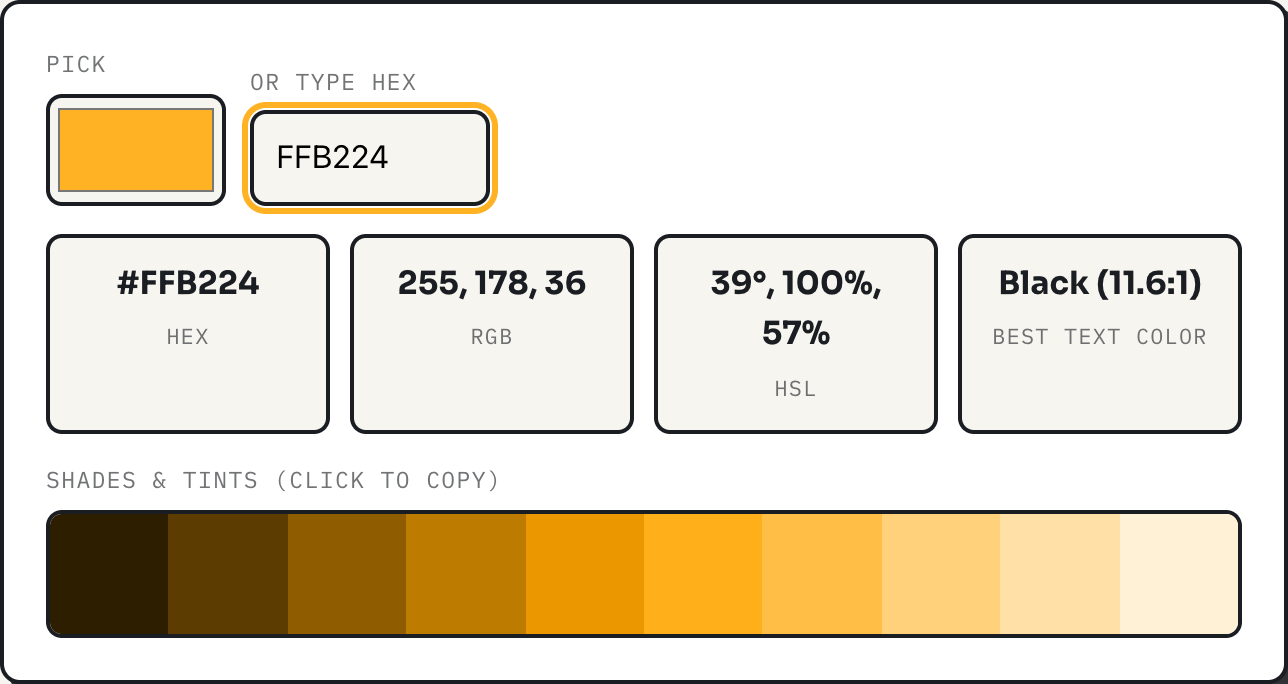
HEX, RGB, and HSL are three ways of writing down the same color. The color picker shows all three at once and converts between them the instant you change one, plus a ten-step shade and tint scale and a text-contrast recommendation. Once you can read a hex code by eye, and see why HSL is the easiest of the three to adjust by hand, picking colors for a design stops being guesswork. A companion tool, the gradient generator, takes two colors from this same system and turns them into a CSS gradient rule.
What each notation actually stores
RGB is the native format: three numbers from 0 to 255, one each for red, green, and blue light mixed together. HEX is the same three numbers written in base 16 instead of base 10, two digits per channel, so #2547F4 is really 25, 47, F4 in hex, which is 37, 71, 244 in decimal. HSL describes the color differently: hue as an angle around a color wheel from 0 to 360 degrees, saturation as a percentage of how vivid it is, and lightness as a percentage from black to white. All three land on the identical color; they are just different coordinate systems for the same point in color space, defined together in the CSS Color specification.
A worked example: converting FFB224 by hand
Take the amber in the screenshot, #FFB224. Split it into pairs: FF, B2, 24. Each pair is a base-16 number, so FF is 255, B2 is 178, and 24 is 36, giving rgb(255, 178, 36). To get HSL, divide each channel by 255 first: 1.0, 0.698, 0.141. The lightness is the average of the highest and lowest of those three: (1.0 + 0.141) / 2, which is 0.57, or 57 percent. Because lightness is above 50 percent here, saturation is the spread between the highest and lowest channel divided by 2 minus their sum: 0.859 divided by 0.859, which is exactly 1, or 100 percent. Hue comes from which channel is highest, red in this case, and how far green and blue sit from each other relative to that spread, which works out to 39 degrees. The result, hsl(39, 100%, 57%), matches the readout exactly.
The site's own colors, converted
| Color | HEX | RGB | HSL | Best text |
|---|---|---|---|---|
| Cobalt (buttons, links) | #2547F4 | 37, 71, 244 | 230°, 90%, 55% | White, 6.4:1 |
| Amber (highlights) | #FFB224 | 255, 178, 36 | 39°, 100%, 57% | Black, 11.6:1 |
| Green (added, success) | #1F9D55 | 31, 157, 85 | 146°, 67%, 37% | Black, 6.0:1 |
| Red (removed, error) | #D64545 | 214, 69, 69 | 0°, 64%, 55% | Black, 4.8:1 |
These are computed with the same formulas as above, run through the tool's own arithmetic. Paste any of the hex codes into the picker to confirm.
Why HSL makes shades and tints easy
The color picker's ten-swatch scale is built entirely in HSL: it locks hue and saturation to the base color's values and steps lightness from about 9 percent up to about 92 percent across ten stops, roughly 9.2 percentage points apart. For cobalt, hue 230 and saturation 90 stay fixed on every swatch; only the 55 percent lightness moves. That is a shade or a tint of the exact same color, not a color that has drifted toward grey the way naively mixing in black or white would, and it is the same construction most UI design systems use to build a color's numbered scale, from a near-black 900 down to a near-white 50. HEX and RGB have no equivalent shortcut; darkening a color in RGB means recomputing all three channels by hand.
Checking text contrast
The picker also computes relative luminance for the current color, following the WCAG contrast formula: each RGB channel is normalized and gamma-corrected, then weighted by how strongly the eye perceives it, with green counting roughly ten times as much as blue. From that single luminance number, the tool computes the contrast ratio against pure white and against pure black and recommends whichever wins. Cobalt gets white text at 6.4 to 1, well past the 4.5 to 1 that WCAG requires for normal-size text. Red is a closer call: white text on #D64545 scores 4.38 to 1, just under the 4.5 to 1 normal-text minimum, but over the looser 3 to 1 minimum WCAG allows for large or bold text, which is why the tool recommends black instead, at 4.8 to 1, the safer choice regardless of text size.
From two colors to a CSS gradient
Pick two colors in the gradient generator, choose linear or radial, and drag the angle slider; the CSS box updates on every change. Cobalt into amber at the default 135 degrees produces background: linear-gradient(135deg, #2547f4, #ffb224);, ready to paste. Switching to radial with the same two colors gives background: radial-gradient(circle, #2547f4, #ffb224);, with the first color at the center fading to the second at the edges. Because HEX values from the color picker paste directly into the gradient tool's swatches, the two tools form one workflow: pick a color and its shade scale in one, then pair two of those hex values into a gradient in the other.
Where these tools stop being enough
The recommended text color is the better of exactly two options, black or white; it will never suggest a tinted navy for a cream background, and any mid-lightness color can win that comparison with a ratio that still fails WCAG for normal text, so read the number, not just which color it picked, for anything with a legal accessibility requirement. Neither tool has an alpha channel or a CMYK mode for print work, and neither saves your palette between visits. The shade scale's ten stops are fixed, so a base color that is already very light or very dark will have its nearest one or two steps look almost identical to the original. The gradient tool's interface holds two color stops only and a radial gradient is always a centered circle with no ellipse or position control; a three-stop or off-center gradient means hand-editing the copied CSS afterward.
What to do
- Use color picker to get HEX, RGB, and HSL for any color at once, and grab a shade or tint from the scale instead of guessing at a darker hex value.
- Check the contrast readout for any text-on-background pairing that matters, and remember 4.5:1 is the bar for normal text, 3:1 for large text.
- Carry a HEX value straight into the gradient generator to pair it with a second color and copy finished CSS.
- For anything needing transparency, print color, or more than two gradient stops, treat the copied CSS as a starting point and edit it by hand.