QR Code Generator
Type anything, a link, text or Wi-Fi details, and download a high-resolution QR code. Generated on your device.
Tip: dark code on a light background scans most reliably. Test with your phone camera before printing.
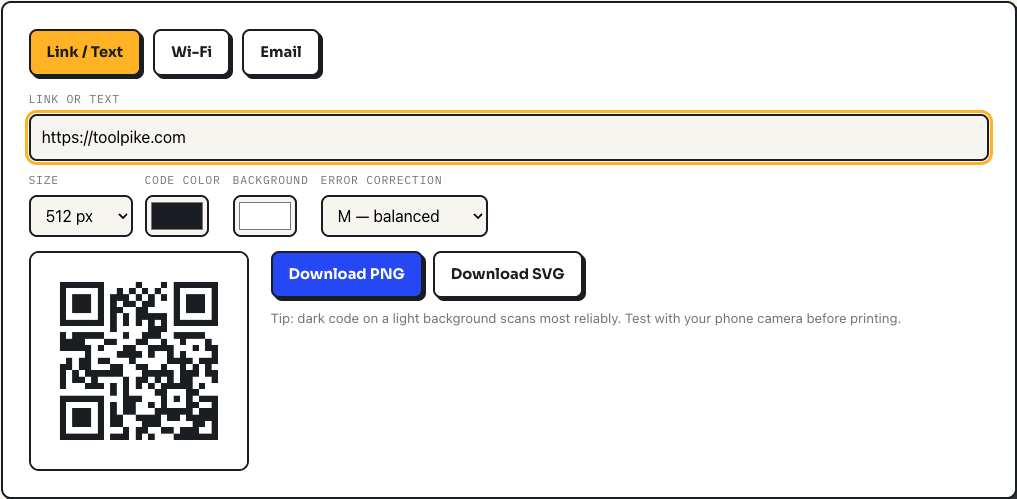
How to create a QR code
- Pick a tab. Link / Text takes any URL or plain text, Wi-Fi asks for your network name, password, and security type, and Email builds a code that opens a pre-addressed message.
- Type your content. The preview redraws on every keystroke, so you always see the current code.
- Adjust size (256, 512, or 1024 pixels), colors, and error correction if you need to, then download as PNG or SVG.
Test the code with your phone camera before you print anything. It takes ten seconds and catches color combinations that look fine on screen but scan poorly on paper.
A worked example: a Wi-Fi code for a guest network
Open the Wi-Fi tab, enter CoffeeShack as the network name, b3ans-and-mugs as the password, and leave security on WPA/WPA2. The tool encodes the standard string WIFI:T:WPA;S:CoffeeShack;P:b3ans-and-mugs;;, which every modern phone camera understands: point, tap the prompt, and the phone joins the network without anyone typing the password. If your password contains a semicolon, comma, colon, backslash, or quote, the tool escapes it automatically so the code still parses. The password is encoded into the image on your device and never sent anywhere, which is exactly what you want for a home network.
What the settings actually do
The code is generated by a QR encoding library running entirely in your browser, drawn onto a canvas for the PNG and rebuilt as clean vector rectangles for the SVG. The error correction dropdown controls how much of the code can be damaged or obscured and still scan: L tolerates the least and produces the smallest, coarsest pattern, H tolerates the most at the cost of a denser code. M, the default, is the right answer for almost everyone. The tool always reserves a four-module quiet zone around the pattern in both formats, because scanners locate the code by that blank margin. My advice from printing a lot of these: choose SVG for anything going to a designer or a print shop, since it scales to a poster without a hint of blur, and only reach for the 1024 pixel PNG when the destination genuinely cannot take vector files.
Honest limitations
QR codes have a hard capacity ceiling, and it shrinks as error correction rises. Paste in several paragraphs of text and you will see the red warning that there is too much data for a scannable code; the fix is to host the text somewhere and encode the link instead. The color pickers will happily let you choose a light code on a dark background, which many scanners read badly, so keep the code darker than the background. And the Wi-Fi mode covers WPA/WPA2, WEP, and open networks; it does not handle enterprise networks that require a username, because the WIFI: string format itself has no standard field for one.
Frequently asked questions
Do these QR codes expire?
No. The QR code is a plain encoding of your text or URL, with no middleman service. It works forever, as long as whatever it points to still exists.
Can I use the QR codes commercially?
Yes. QR codes generated here are yours to use anywhere: packaging, menus, flyers, business cards. No attribution required.
PNG or SVG: which should I download?
Use SVG for print and design software: it scales to any size without blurring. Use PNG for quick use in documents, websites, and messages.
How do I make a Wi-Fi QR code?
Use the Wi-Fi tab, enter your network name and password, and scan the result with a phone camera to join the network instantly. The password is encoded into the image on your device and never uploaded.
Why is there a quiet zone around the code?
Scanners need blank margin (the "quiet zone") to find the code. Keep it when placing the QR code on colored backgrounds.